How to send a fax from your iPhone
Your iPhone has no fax app of its own, so you need an app that sends faxes for you. With Ditto, you type the fax number, scan the pages or pick a PDF, and tap Send fax: Ditto calls the receiving fax machine and gives you a receipt. Each page costs 1 credit, with no subscription and no account.

Send a fax in four steps
- Step 1 of 4
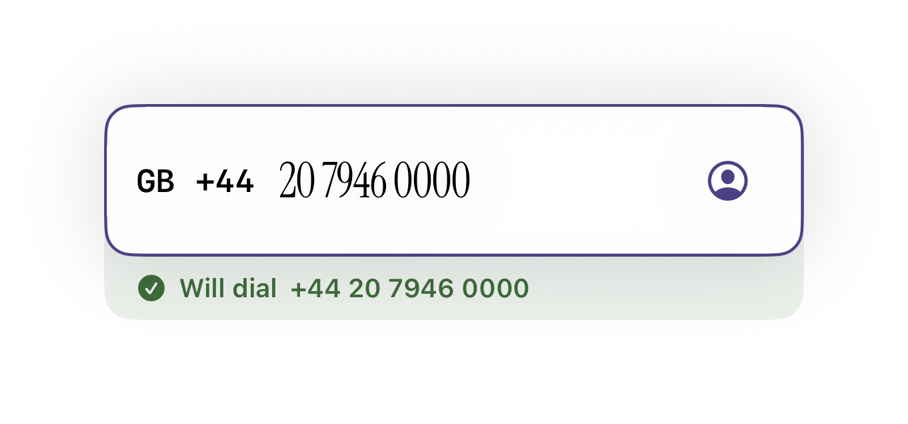
Address your fax.
Open Ditto and tap Send a fax. Choose the country, then type the fax number or pick it from Contacts. Before you send, Ditto shows the number it will dial. Add your name: it's printed in the header of each page.
- Step 2 of 4
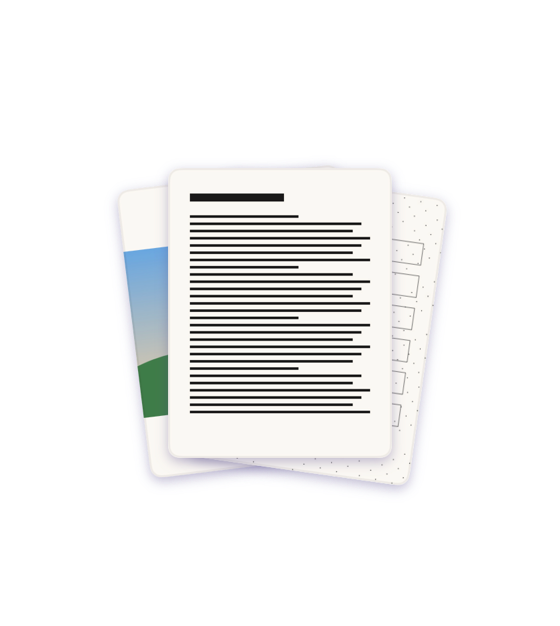
Add your pages.
Tap Scan to use the camera on paper, Photos to pick from your library, or Files to pick a PDF or an image. A PDF with a password asks for it, and Ditto doesn't save the password.
- Step 3 of 4
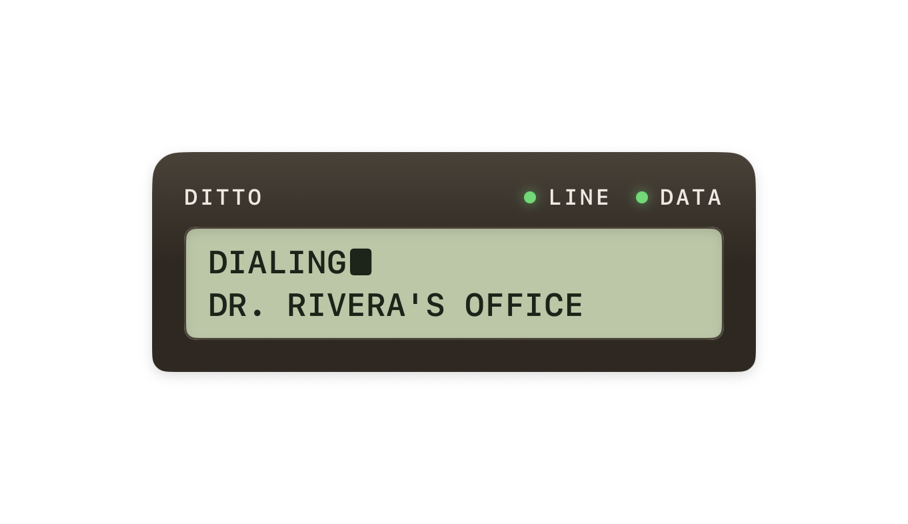
Check it and send.
The last step shows your pages, the credits the fax takes and how many you'll have left. A cover page is optional and adds 1 page. Tap Send fax: Ditto dials the fax machine and sends your pages down the line, one at a time. You can close the app meanwhile, and the fax keeps going.
- Step 4 of 4
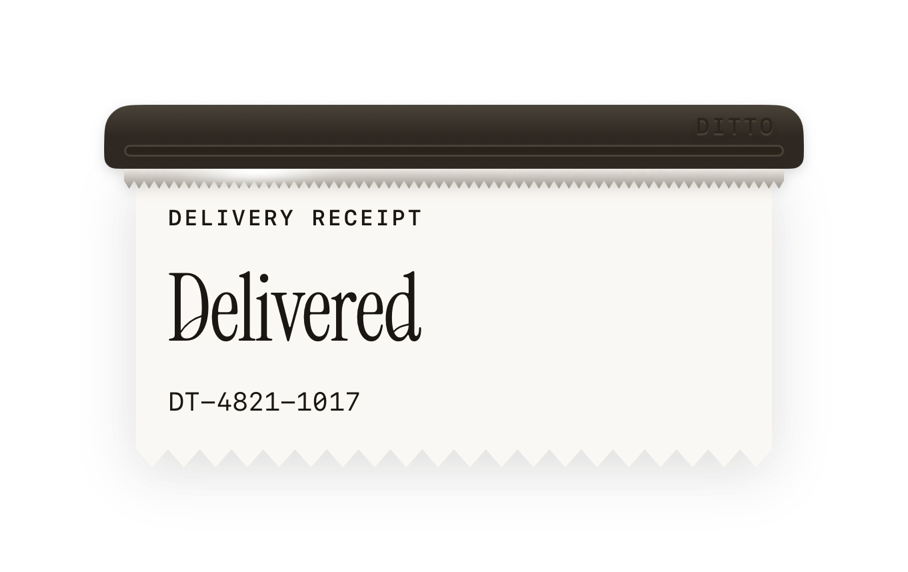
Keep the receipt.
When the fax network confirms that the receiving machine got your fax, its receipt says it was delivered and shows a confirmation code you can share. Activity lists every fax with its status.


What you need
- An iPhone with iOS 26 or later, and the Ditto app.
- The fax number and its country. Ditto delivers to fax lines in 100+ countries, and the country list in a new fax shows every one.
- Credits for the pages: 1 credit sends 1 page, and a cover page counts as one. Credits come in packs on the Credits tab.
- No account. Ditto never asks for your phone number or email.
What it costs
Each page takes 1 credit, whatever the country. On the US App Store, the smallest pack is $2.99 for 4 pages and the largest $49.99 for 150 pages, so a page costs between $0.33 and $0.75, before sales tax. Credits never expire, and there's no subscription. How much does it cost to send a fax? compares this with stores, libraries and other apps.
If the fax doesn't go through
If the call can't get through (a busy line, no answer, a wrong number, or a problem on Ditto's side), the credits come back on their own, with nothing to ask for. A call that drops partway keeps its credits, since some pages may have arrived. The receipt says what went wrong and whether the credits came back.
What Ditto can't do
- Receive faxes. Ditto gives you no fax number. The number at the top of each page is Ditto's sending line, so a fax sent back to it won't reach you. If you need a reply, ask for it by email or phone.
- Send photos as they are. A fax line carries pages in black and white, so Ditto prepares each page before it goes: text from scans and PDFs comes out sharp, and photos turn into fine dots, like a newspaper's.
- Open forms made only for Adobe Acrobat. Fill such a form in Acrobat on a computer, print it to PDF, then add that file.
- Tell whether someone picked up the pages. Delivered means the receiving machine got the fax, not that anyone has read it.
Questions and answers
Does the iPhone have a built-in fax app?
No. iOS has no fax app of its own, so you send faxes with an app from the App Store, such as Ditto.
Do I need a fax machine or a phone line?
No. Ditto calls the receiving fax machine for you. You need your iPhone and an internet connection.
Can I receive faxes with Ditto?
No. Ditto sends faxes. It can't receive them, so it gives you no fax number. The number at the top of each page is Ditto's sending line: a fax sent back to it won't reach you. If you need a reply, ask for it another way, like email or phone.
How do I know my fax arrived?
Activity shows each fax's status. Delivered means the fax network confirmed the receiving machine got your fax, and its receipt has a confirmation code you can share. Ditto can't tell whether someone has picked the pages up.
Do I need an account?
No. Ditto never asks for your phone number or email, and there's no account to create.
What happens to my document?
It leaves your iPhone encrypted, and Ditto's servers delete it as soon as it's handed to the fax network. It never trains AI, and Ditto has no ads. Like any fax, the call to the receiving machine isn't encrypted. On your iPhone, your history keeps a preview of the first three pages you added to each fax (not the cover), the cover subject you typed, your name as the header printed it and the full fax number, until you delete your history in Settings. Your iPhone's backups (iCloud or a computer) can still hold them.
Sources
Prices and facts as checked on .
- How to send a fax from an iPhone, Apple Support Community